Miten JavaScript otetaan käyttöön
- Luetaan
- 2 min
- Kategoria
- Selaimet ja evästeet
JavaScriptia käytetään Proton Mail -viestien salaamiseen ja salauksen purkamiseen sekä yksityisen avaimenne (tai avaimienne) tallentamiseen paikallisesti. JavaScript on siksi välttämätön, jotta Proton Mail toimii oikein.
Lue lisää siitä, miksi tarvitsette JavaScriptiä
JavaScript on oletusarvoisesti käytössä useimmissa selaimissa, mutta jos se ei jostain syystä ole, tässä artikkelissa neuvotaan, miten JavaScript otetaan käyttöön kaikissa yleisimmissä selaimissa.
Firefox, Tor-selain (Windows, macOS, Linux)
Huomatkaa, että JavaScript on automaattisesti käytössä Firefoxin Android- ja iOS-/iPadOS-versioissa.
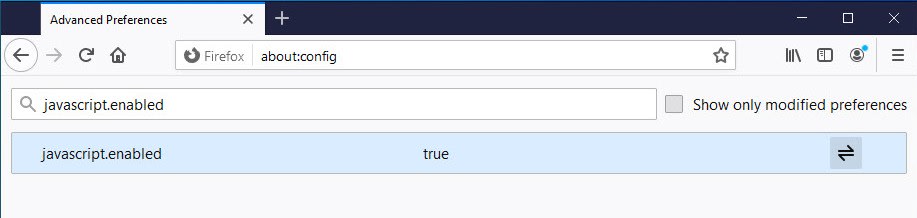
1. Kirjoittakaa tai liittäkää about:config osoitepalkkiin ja painakaa Enter-näppäintä.
2. Napsauttakaa Hyväksy riski ja jatka.
3. Syöttäkää hakukenttään javascript.enabled ja kaksoisnapsauttakaa mitä tahansa kohtaa rivillä javascript.enabled muuttaaksenne asetuksen arvoksi true.
Google Chrome, Chromium, Brave (Windows, macOS, Linux, Chromebook)
1. Siirtykää kohtaan Valikko (kolmen pisteen kuvake oikeassa yläkulmassa) → Asetukset → Yksityisyys ja tietoturva → Sivustoasetukset → Sisältö → JavaScript ja valitkaa asetus Sivustot voivat käyttää JavaScriptiä ottaaksenne JavaScriptin käyttöön.
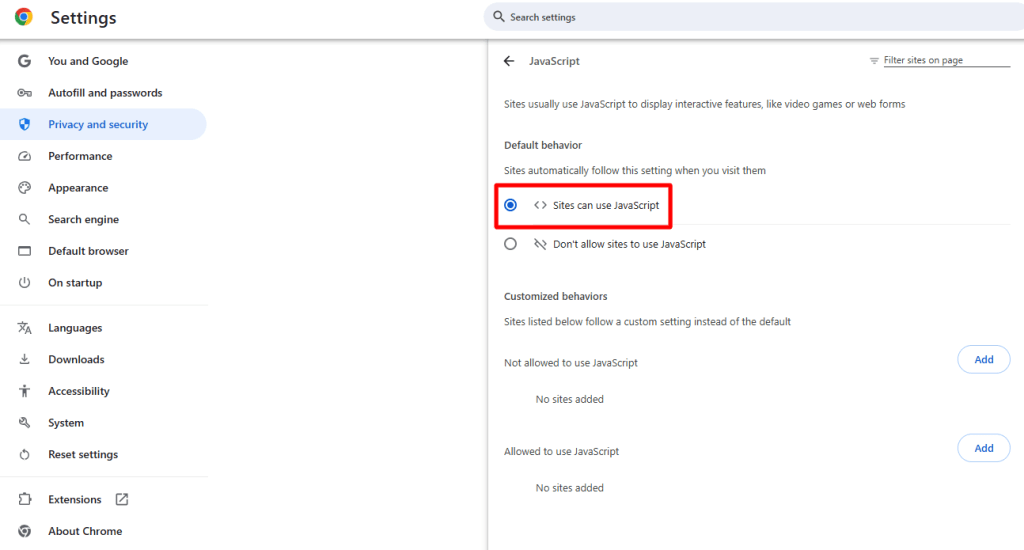
Brave-selaimessa siirtykää kohtaan Valikko → Asetukset → Lisäasetukset → Yksityisyys ja tietoturva → Sivusto- ja suojakilpiasetukset → Sisältö → JavaScript.)
Chrome, Brave (Android)
Huomatkaa, että JavaScript on automaattisesti käytössä Chromen iOS- ja iPadOS-versioissa.
Siirtykää kohtaan Valikko → Asetukset → Sivustoasetukset → JavaScript ja valitkaa asetus Sivustot voivat käyttää JavaScriptiä ottaaksenne JavaScriptin käyttöön.

Microsoft Edge Chromium (Windows)
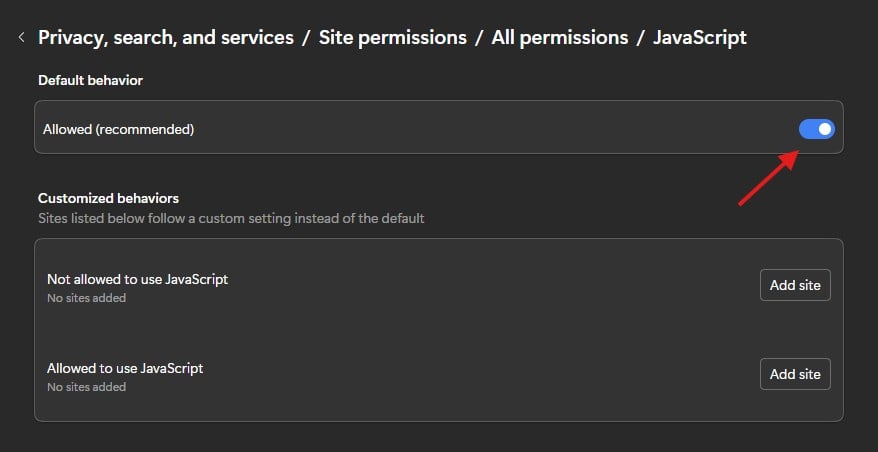
1. Siirtykää kohtaan Valikko (kolmen pisteen kuvake oikeassa yläkulmassa) → Asetukset → Asetusvalikko (kolmiviivainen hampurilaiskuvake ”Asetukset”-tunnisteen vieressä) → Yksityisyys, haku ja palvelut → Sivuston käyttöoikeudet → Kaikki käyttöoikeudet → JavaScript. Kääntäkää kytkin Sallittu (suositus) asentoon päällä.
Safari (macOS)
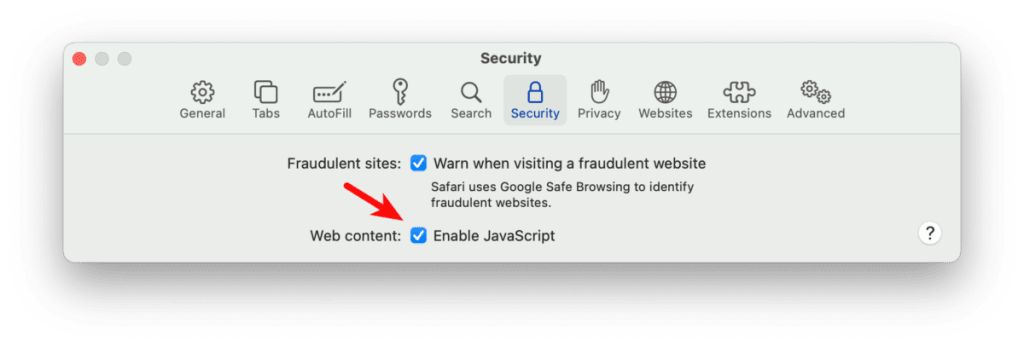
1. Siirtykää macOS:n valikkorivillä kohtaan Safari → Asetukset → Suojaus-välilehti → Verkkosisältö ja valitkaa valintaruutu Ota JavaScript käyttöön.
Safari (iOS ja iPadOS)
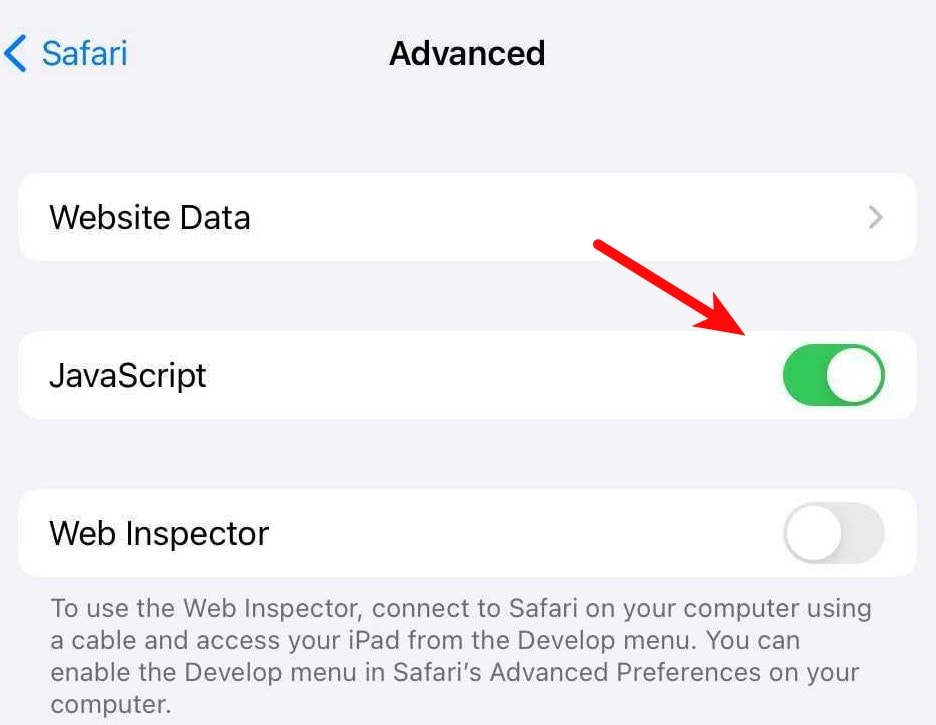
Siirtykää iOS-/iPadOS-laitteella kohtaan Asetukset → Safari → Lisäasetukset ja kääntäkää kytkin JavaScript asentoon päällä.
Opera (Windows, Linux, macOS)
Huomatkaa, että JavaScript on automaattisesti käytössä Operan Android- ja iOS-/iPadOS-versioissa.
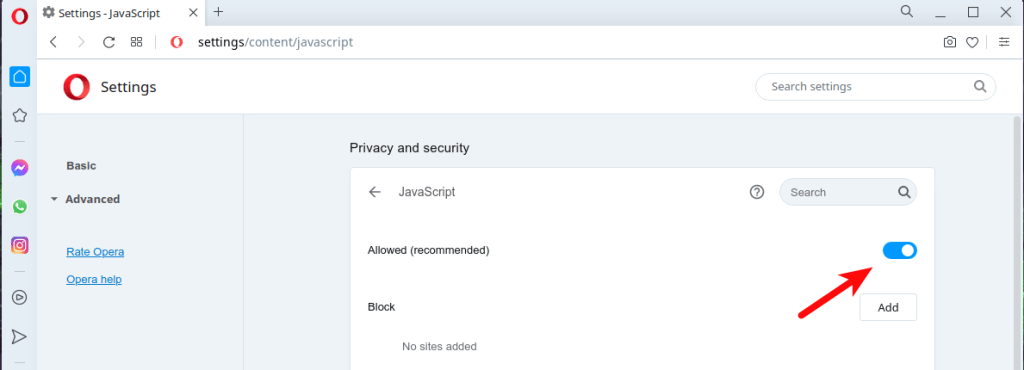
1. Napsauttakaa vasemmassa sivupalkissa olevaa kohtaa Lisäasetukset ja napsauttakaa Yksityisyys ja tietoturva. Kohdassa Yksityisyys ja tietoturva napsauttakaa kohtaa Sivustoasetukset ja napsauttakaa kohtaa JavaScript. Ottakaa ylhäältä käyttöön tai poistakaa käytöstä Sallittu (suositus).