Como ativar o JavaScript
- Leitura
- 2 min
- Categoria
- Navegadores e cookies
O JavaScript é usado para criptografar e descriptografar mensagens do Proton Mail e para salvar sua(s) chave(s) privada(s) localmente. Portanto, o JavaScript é necessário para que o Proton Mail funcione corretamente.
Saiba mais sobre por que você precisa de JavaScript
O JavaScript está ativado por padrão na maioria dos navegadores, mas se por algum motivo não estiver, este artigo explica como ativar o JavaScript em todos os principais navegadores.
Firefox, Navegador Tor (Windows, macOS, Linux)
Observe que o JavaScript é ativado automaticamente no Firefox para Android e no Firefox para iOS/iPadOS.
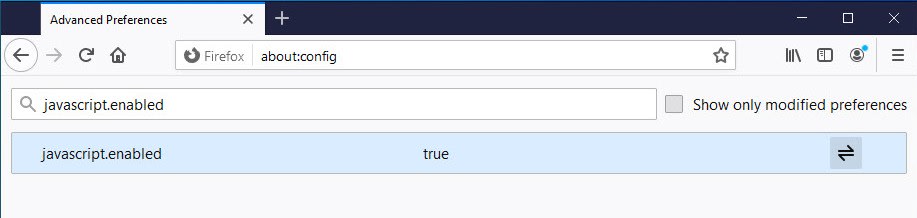
1. Digite ou cole about:config na barra de URL e toque em enter.
2. Clique em Aceitar o risco e continuar.
3. Insira javascript.enabled na caixa de pesquisa e clique duas vezes em qualquer lugar na linha do javascript.enabled para alterar a configuração para true.
Google Chrome, Chromium, Brave (Windows, macOS, Linux, Chromebook)
1. Acesse Menu (ícone de 3 pontos no canto superior direito) → Configurações → Privacidade e segurança → Configurações do site → Conteúdo → JavaScript e escolha a configuração Os sites podem usar o JavaScript para ativar o JavaScript.
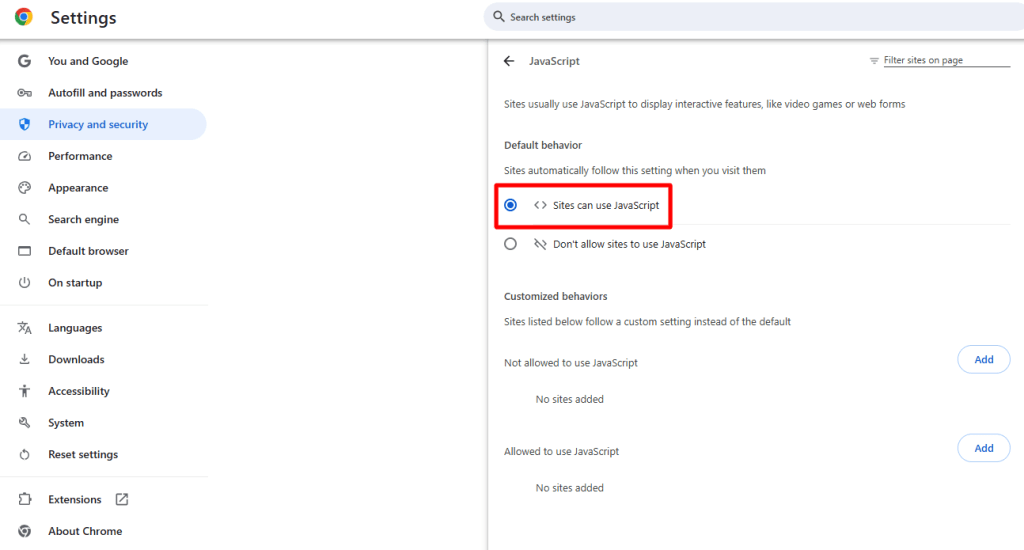
No Brave, acesse Menu → Configurações → Configurações adicionais → Privacidade e segurança → Configurações do site e de proteções → Conteúdo → JavaScript.)
Chrome, Brave (Android)
Observe que o JavaScript é ativado automaticamente no Chrome para iOS/iPad OS.
Acesse Menu → Configurações → Configurações do site → JavaScript e escolha a configuração Os sites podem usar o JavaScript para ativar o JavaScript.

Microsoft Edge Chromium (Windows)
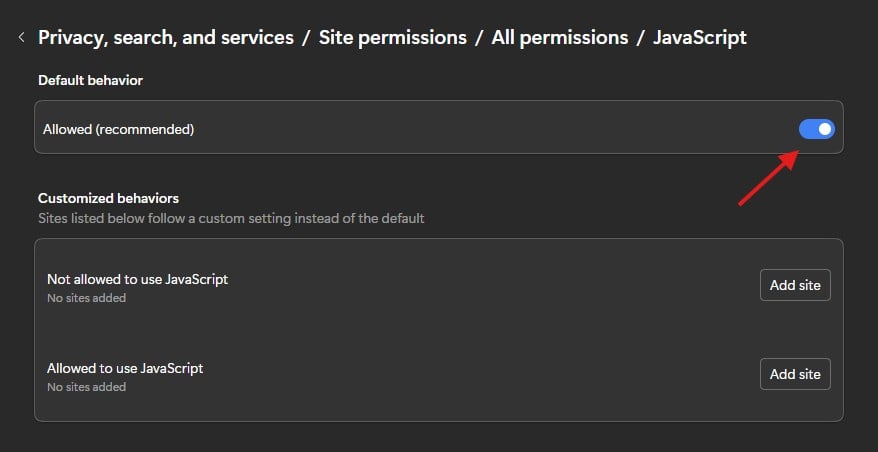
1. Acesse Menu (ícone de 3 pontos no canto superior direito) → Configurações → Menu de configurações (o ícone de hambúrguer de 3 barras ao lado do marcador “Configurações”) → Privacidade, pesquisa e serviços → Permissões do site → Todas as permissões → JavaScript. Mude o interruptor Permitido (recomendado) para ativado.
Safari (macOS)
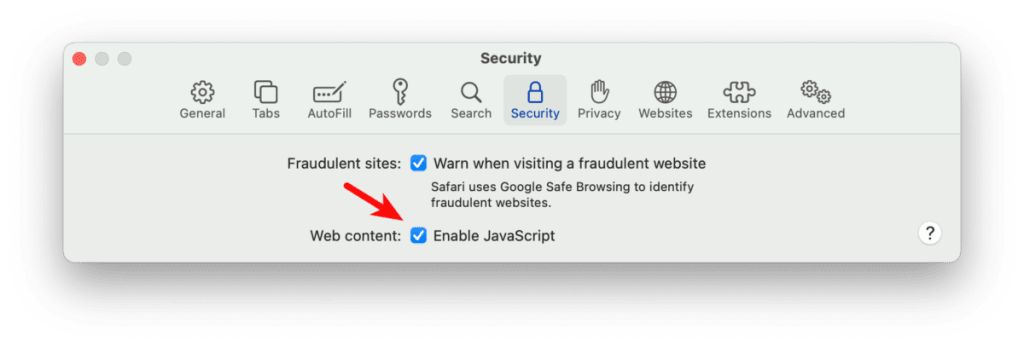
1. Acesse Safari na barra de menus do macOS → Configurações → guia Segurança → Conteúdo da web e marque a caixa de seleção Ativar JavaScript.
Safari (iOS e iPadOS)
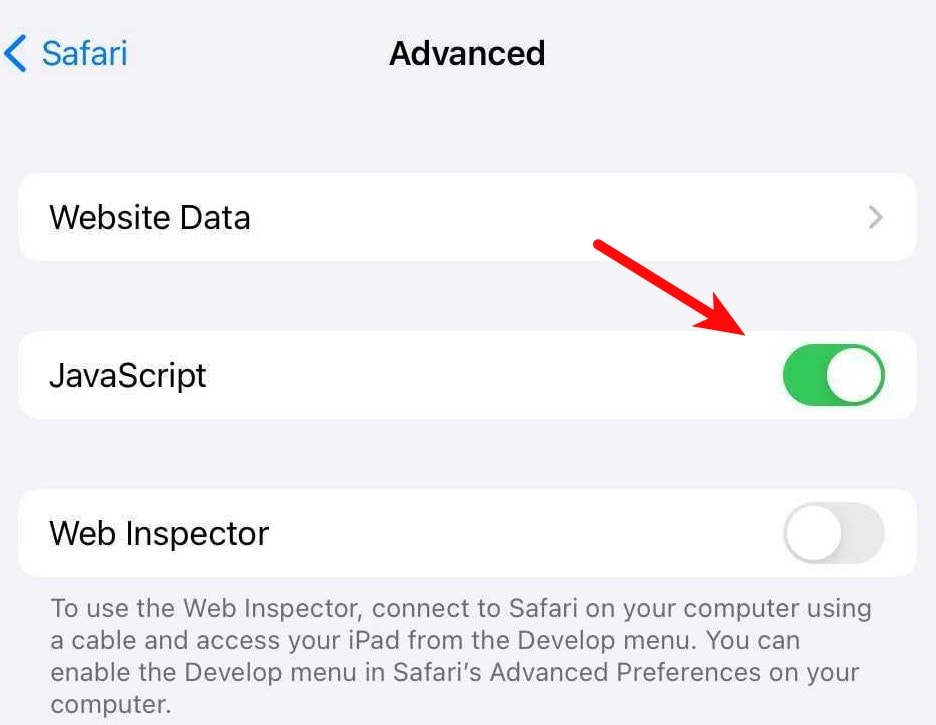
Acesse as Configurações do iOS/iPad OS → Safari → Avançado e mude a chave do JavaScript para ativado.
Opera (Windows, Linux, macOS)
Observe que o JavaScript é ativado automaticamente no Opera para Android e no Opera para iOS/iPad OS.
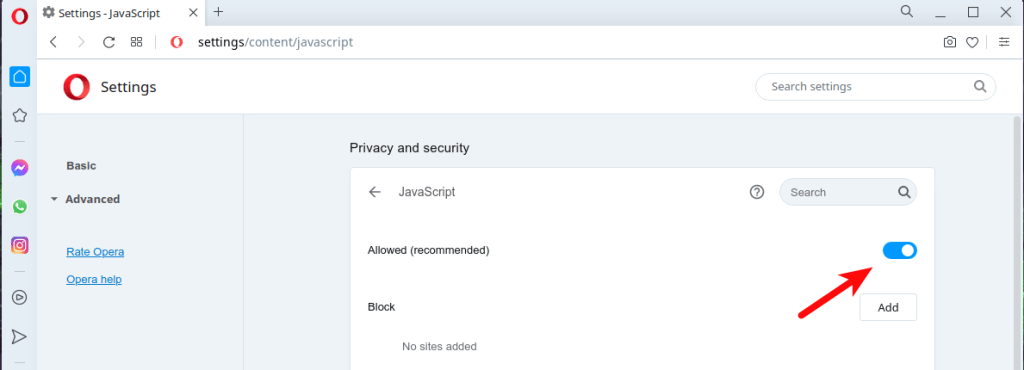
1. Clique em Avançado na barra lateral esquerda e clique em Privacidade e segurança. Em Privacidade e segurança, clique em Configurações do site e clique em JavaScript. Na parte superior, ative ou desative Permitido (recomendado).