
Tilaa ulkoinen kalenteri
- Luetaan
- 3 min
- Kategoria
- Kalenterin jakaminen ja tilaus
Käyttämällä Proton Calendaria voitte tilata jonkun toisen kalenterin ja tarkastella hänen tapahtumiaan, vaikka hän ei käyttäisikään Protonia.
Jos haluatte tilata kalenterin, pyytäkää jakolinkki kalenterin omistajalta ja lisätkää se Proton Calendar -verkkosovellukseenne. Tilauksen jälkeen voitte tarkastella tapahtumia myös mobiili- ja työpöytäsovelluksissamme.
Tilatut kalenterit lasketaan mukaan tilaukseenne sisältyvien kalentereiden kokonaismäärään.
Näin tilaatte toisen henkilön kalenterin
- Hanki kalenterin URL-osoite
Pyytäkää ensin kalenterin omistajaa jakamaan kalenterinsa iCal-linkki (.ics). Hänen on ehkä asetettava kalenterinsa julkiseksi (julkaistava se), ennen kuin hän voi luoda linkin.
Nämä ohjeet neuvovat, miten linkki jaetaan joissakin yleisimmissä kalenterisovelluksissa:
- Miten kalenterilinkki jaetaan Proton Calendarissa
- Miten kalenterilinkki jaetaan Google-kalenterissa
- Miten kalenterilinkki jaetaan Outlook-kalenterissa(uusi ikkuna)
- Miten kalenterilinkki jaetaan Nextcloudissa(uusi ikkuna)
Kalenterin omistaja voi mahdollisesti määrittää eri katseluoikeustasoja, kuten näyttää teille varatut ajat mutta piilottaa tapahtuman tiedot. Jos hän muuttaa käyttöoikeustasoanne, hänen on jaettava uusi linkki kanssanne.
- Kirjautukaa sisään osoitteessa calendar.proton.me(uusi ikkuna) ja avatkaa tilinne asetukset (Asetukset ⚙️ → Kaikki asetukset).
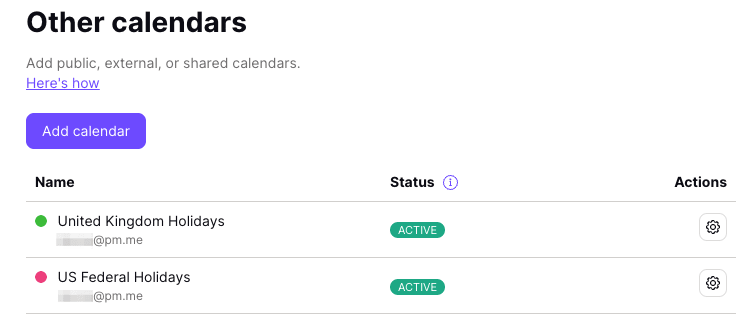
- Valitkaa sivupalkista Kalenterit. Siirtykää kohtaan Muut kalenterit ja klikatkaa Lisää kalenteri URL-osoitteesta.
- Liittäkää linkki kohtaan Kalenterin URL ja klikatkaa sitten Lisää kalenteri.
Kaikkien tapahtumien synkronoinnissa voi kestää muutama minuutti. Kun synkronointi on valmis, tilaamanne kalenteri näkyy kohdassa Muut kalenterit. Se lasketaan mukaan tilaukseenne sisältyvien kalentereiden kokonaismäärään.
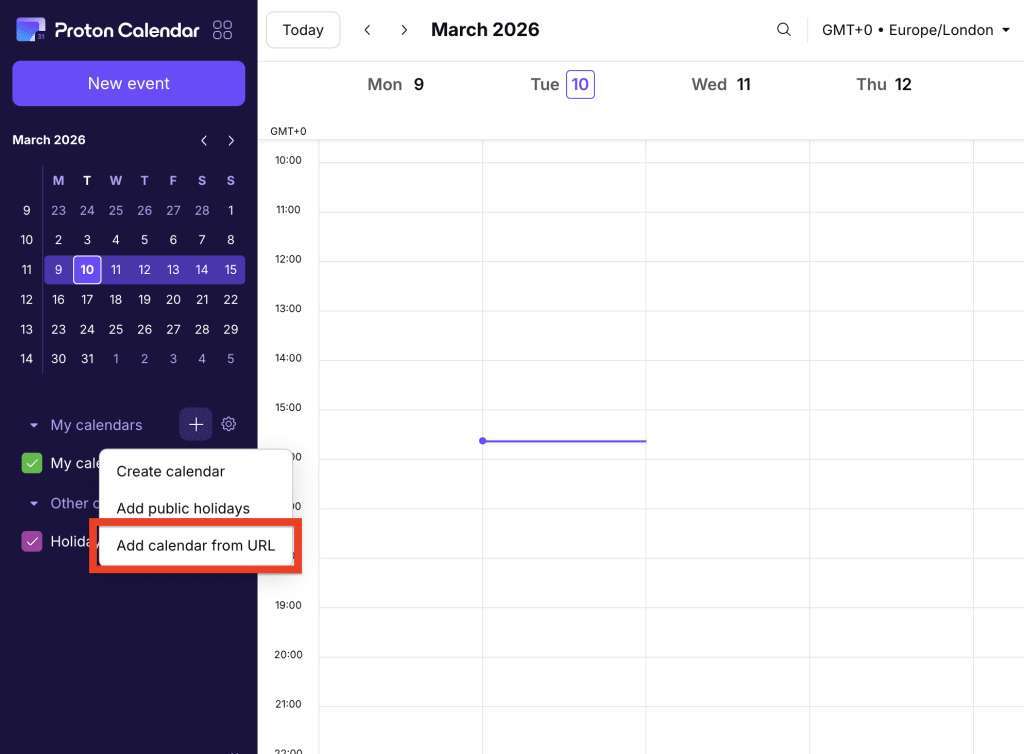
Voitte myös tilata kalenterin nopeasti Proton Calendarin etusivulta. Klikatkaa vain + -painiketta kohdan Omat kalenterit vieressä ja valitkaa sitten Lisää kalenteri URL-osoitteesta alasvetovalikosta.
Tilatut kalenterit ovat vain tarkasteltavissa
Tämä tarkoittaa, että ette voi:
- muokata tai poistaa tapahtumia
- asettaa ne oletuskalenteriksenne
- jakaa tai viedä niitä
- tuoda niihin tapahtumia
Hallitse tilattuja kalentereita
Muuttaaksenne kalenterin nimeä tai kuvausta:
- Kirjautukaa sisään osoitteessa calendar.proton.me(uusi ikkuna) ja avatkaa tilinne asetukset (Asetukset ⚙️ → Kaikki asetukset).
- Valitkaa sivupalkista Kalenterit ja siirtykää kohtaan Muut kalenterit. Etsikää kalenteri, jota haluatte muokata, ja klikatkaa Avaa asetukset (⚙️).
Peru kalenterin tilaus
- Kirjautukaa sisään osoitteessa calendar.proton.me(uusi ikkuna) ja avatkaa tilinne asetukset (Asetukset ⚙️ → Kaikki asetukset).
- Valitkaa sivupalkista Kalenterit ja siirtykää kohtaan Muut kalenterit. Etsikää kalenteri, jota haluatte muokata, ja klikatkaa Avaa asetukset (⚙️).
- Vierittäkää kohtaan Poista kalenteri ja klikatkaa Peru tilaus.
Tämä poistaa kalenterin ja kaikki sen tapahtumat.
Vianetsintä
Kolmansien osapuolten kalenterit synkronoituvat 4–16 tunnin välein palveluntarjoajasta riippuen.
Jos aikaa on kulunut yli 16 tuntia eivätkä tapahtumanne ole päivittyneet, tarkistakaa tilatut kalenterinne (Asetukset ⚙️ → Kaikki asetukset → Kalenterit → Muut kalenterit).
Jos näette kalenterin vieressä ei synkronoitu -varoituksen, viekää hiiri sen päälle saadaksenne lisätietoja.
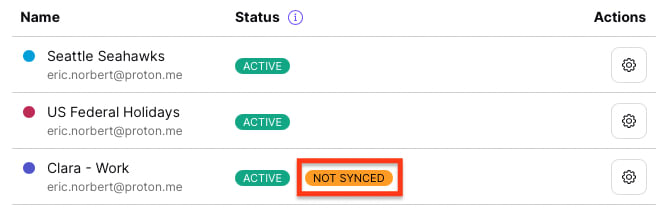
Näette jonkin seuraavista viesteistä:
Viimeisestä päivityksestä on kulunut yli 12 tuntia
Emme ole pystyneet päivittämään kalenteria viimeisen 12 tunnin aikana. Synkronointi voi kestää jopa 16 tuntia, joten odottakaa hetki ennen kuin otatte yhteyttä.
Kalenterin muotoa ei tueta
Kalenteria ei voida synkronoida, koska se käyttää eri muotoa kuin noudattamamme iCalendar-standardi(uusi ikkuna). Tarkistakaa, että linkkinne on oikein.
Kalenterilinkki ei ole käytettävissä
Kalenteri ei salli ulkoisia tilaajia.
Kalenterilinkki ei ole tilapäisesti käytettävissä
Kalenterin omistaja on saattanut poistaa tai muokata linkkiä.
Kalenteri on liian suuri
Kalenteritiedosto on liian suuri tuotavaksi.
Google Calendar
Voitte pienentää kalenterin kokoa synkronoimalla vain tapahtumat, jotka ovat määritetyn päivämäärän ja ajan jälkeen. Tehdäksenne tämän, muokatkaa kalenterilinkkiä lisäämällä seuraava URL-osoitteen loppuun:
?start-min=YYYY-MM-DDT00:00:00Z
Esimerkiksi:
Yllä olevassa esimerkissä kaikkia ennen 1. tammikuuta 2022 olevia tapahtumia ei synkronoida Proton Calendar -kalenteriin, mikä tekee tiedostosta pienemmän.
Muut kalenterit
Tällä hetkellä muille kalenteripalveluille ei ole selkeää kiertotietä.
Mutta jos kalenterialusta sallii sen, voitte yrittää luoda jaettavan linkin, joka alkaa myöhemmästä ajankohdasta.