
Como importar do 1Password para o Proton Pass
- Leitura
- 2 min
- Categoria
- Importar e exportar senhas
O Proton Pass tem suporte nativo para importar suas senhas e outros dados do 1Password, incluindo arquivos 1PUX.
O processo para isso tem duas etapas:
1. Exporte suas senhas e outros dados do 1Password
2. Importe suas senhas exportadas para o Proton Pass
Como exportar do 1Password no macOS
Como exportar do 1Password no Windows
Como exportar do 1Password no iOS
Como importar para o Proton Pass
Como exportar do 1Password no macOS
- Abra o aplicativo de desktop do 1Password e vá para a barra de menu → Arquivo → Exportar → seu nome de usuário do 1Password.

2. Insira sua senha mestre do 1Password, certifique-se de que o Formato do arquivo de exportação: 1PUX esteja selecionado e clique em Exportar dados.

O gerenciador de arquivos do seu sistema perguntará onde você deseja salvar o arquivo .1pux.
Como exportar do 1Password no Windows
- Abra o aplicativo de desktop do 1Password e vá para a barra de menu → ☰ → Exportar → seu nome de usuário do 1Password.
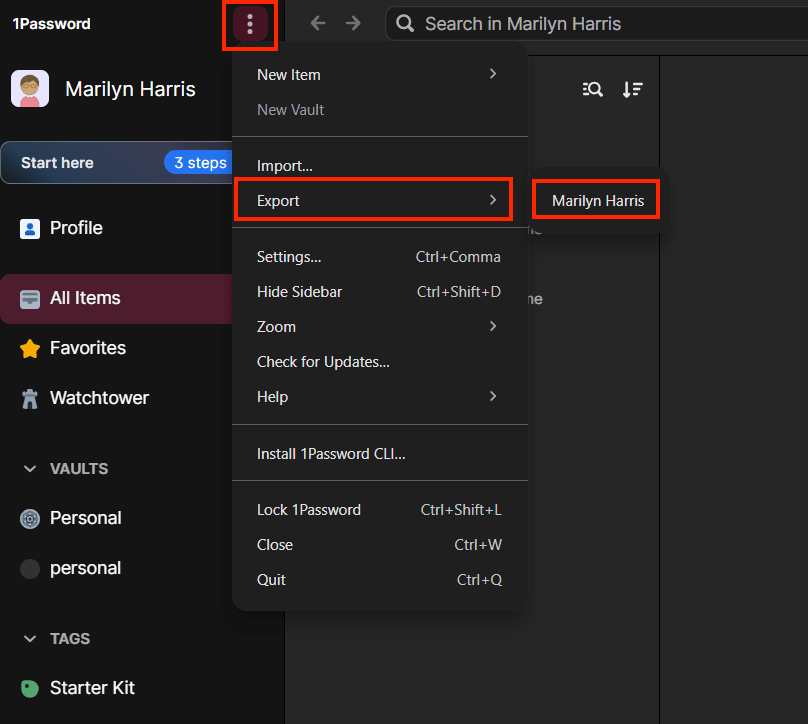
- Insira sua senha mestre do 1Password, certifique-se de que o Formato do arquivo de exportação: 1PUX esteja selecionado e clique em Exportar dados.

Como exportar do 1Password no iOS
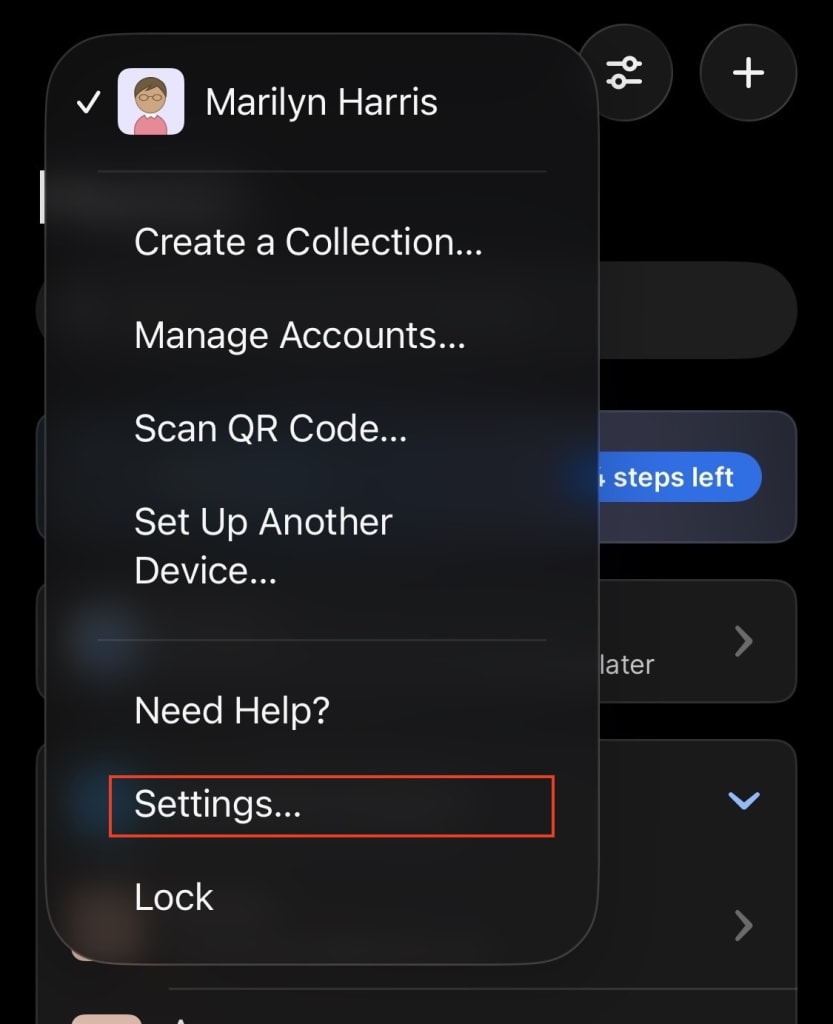
- Abra e desbloqueie o aplicativo do 1Password no seu dispositivo e selecione o ícone da sua conta → Configurações.
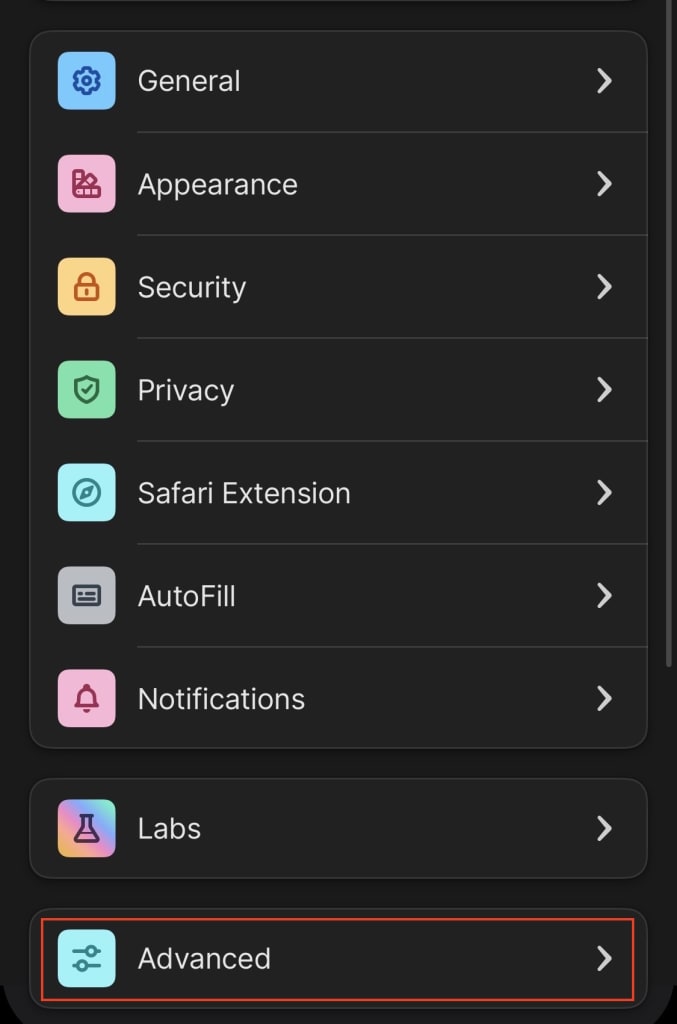
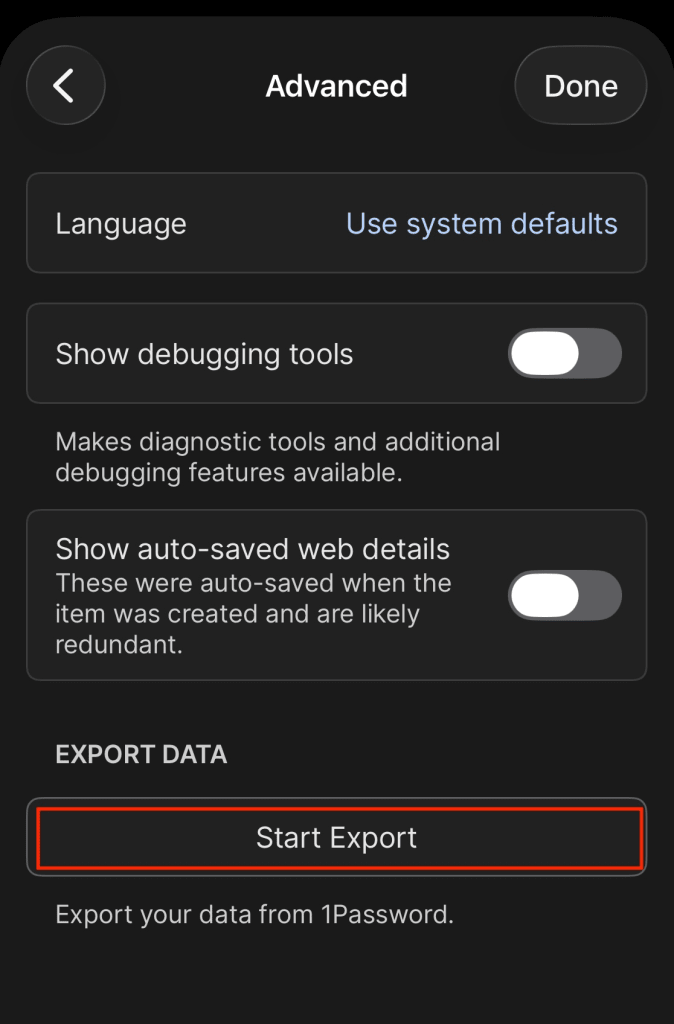
- Selecione Avançado → Iniciar exportação e siga as instruções para exportar seus dados para o Proton Pass
Como importar para o Proton Pass
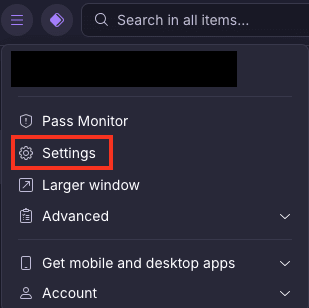
1. Abra a extensão de navegador do Proton Pass e acesse ☰ → Configurações.
2. Vá para a guia Importar, selecione 1Password (1pux, 1pif) na lista suspensa Provedor e arraste o arquivo exportado para a caixa Arquivo ou clique no botão Escolha um arquivo ou arraste-o aqui para selecioná-lo manualmente usando o gerenciador de arquivos do seu sistema.
Clique em Importar quando terminar.

