So sicherst du Proton Pass mit einer Zugriffs-PIN
- Lesen
- 1 Min.
- Kategorien
- Proton Pass
- Proton Pass verwenden
Du kannst die Proton Pass Web-App und Browser-Erweiterungen absichern, indem du eine persönliche Identifikationsnummer (PIN) festlegst, die für den Zugriff erforderlich ist. Dieser Artikel zeigt dir, wie du dies für jede App einrichtest.
Deine PIN ist gegen Brute-Force-Angriffe gesichert: Nach drei fehlgeschlagenen Zugriffsversuchen mit der PIN wirst du aufgefordert, dich erneut anzumelden.
Bei den mobilen Apps von Proton Pass wird die Zugriffssicherheit über deine Geräteeinstellungen verwaltet.
- Festlegen der PIN in der Proton Pass Web-App
- Festlegen der PIN in der Proton Pass Browser-Erweiterung
Festlegen der PIN in der Proton Pass Web-App
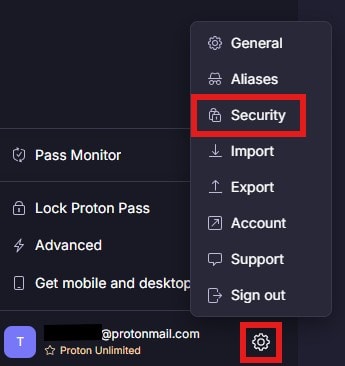
1. Um eine PIN in der Web-App festzulegen, klicken Sie auf das Zahnrad-Symbol unten in der linken Seitenleiste neben Ihrem Benutzernamen und wählen Sie Sicherheit aus.
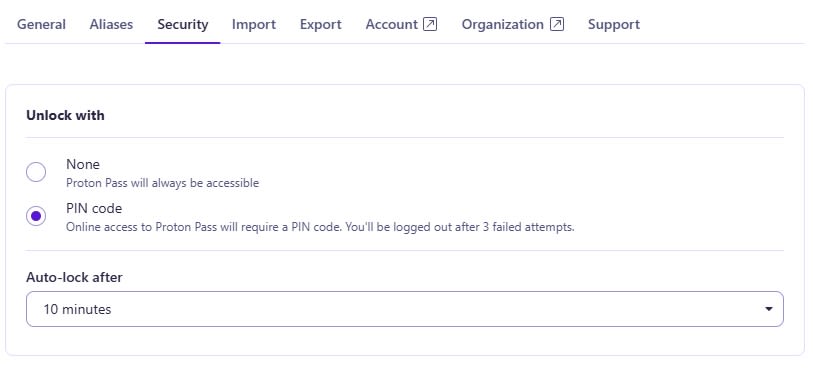
2. Ein neues Fenster öffnet sich in der Mitte des Bildschirms. Wählen Sie die Option PIN-Code und geben Sie Ihr Passwort zur Bestätigung ein. Geben Sie anschließend die sechsstellige PIN ein, die Sie verwenden möchten.
Wählen Sie zudem eine Dauer aus, nach der die App automatisch sperrt
Festlegen der PIN in der Proton Pass Browser-Erweiterung
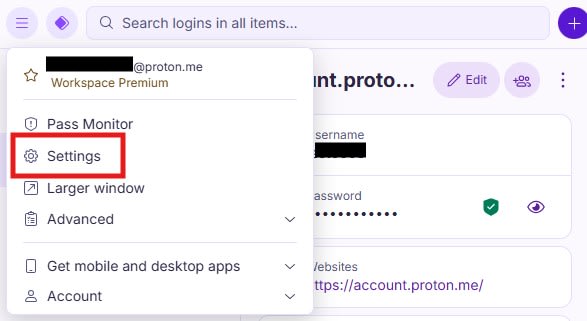
1. In der Browser-Erweiterung können Sie die PIN festlegen, indem Sie auf das Hamburger-Menü oben links klicken und dann Einstellungen auswählen.
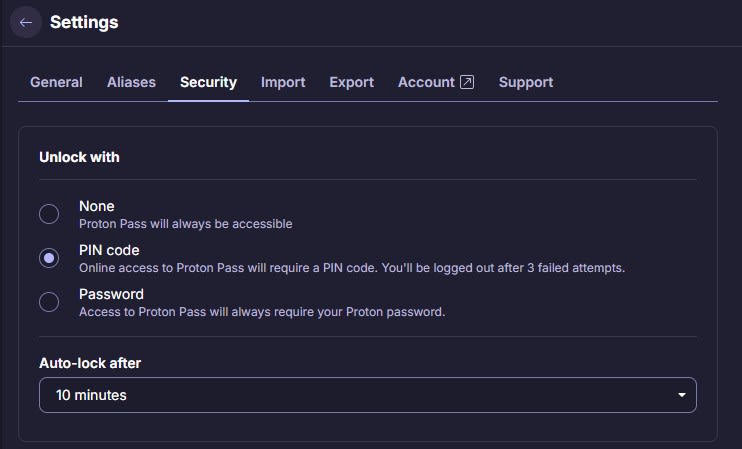
2. Ein neuer Bildschirm öffnet sich in deinem Browser. Navigiere in der oberen Leiste zu Sicherheit. Aktiviere dort das Kontrollkästchen neben PIN-Code und gib den sechsstelligen PIN ein, den du verwenden möchtest. Du kannst auch eine Dauer für das Automatisches Sperren auswählen.